Canvas Search
Overview
Canvas Search adds a search overlay to Salesforce Flow Builder, allowing users to search across the current Flow and move through matches more easily.
The feature is designed to help users work more efficiently in larger or more complex Flows by providing a quick way to locate:
- Flow elements by label
- Flow elements by type
- connector labels such as decision outcomes
- toolbox and resource items in the left panel
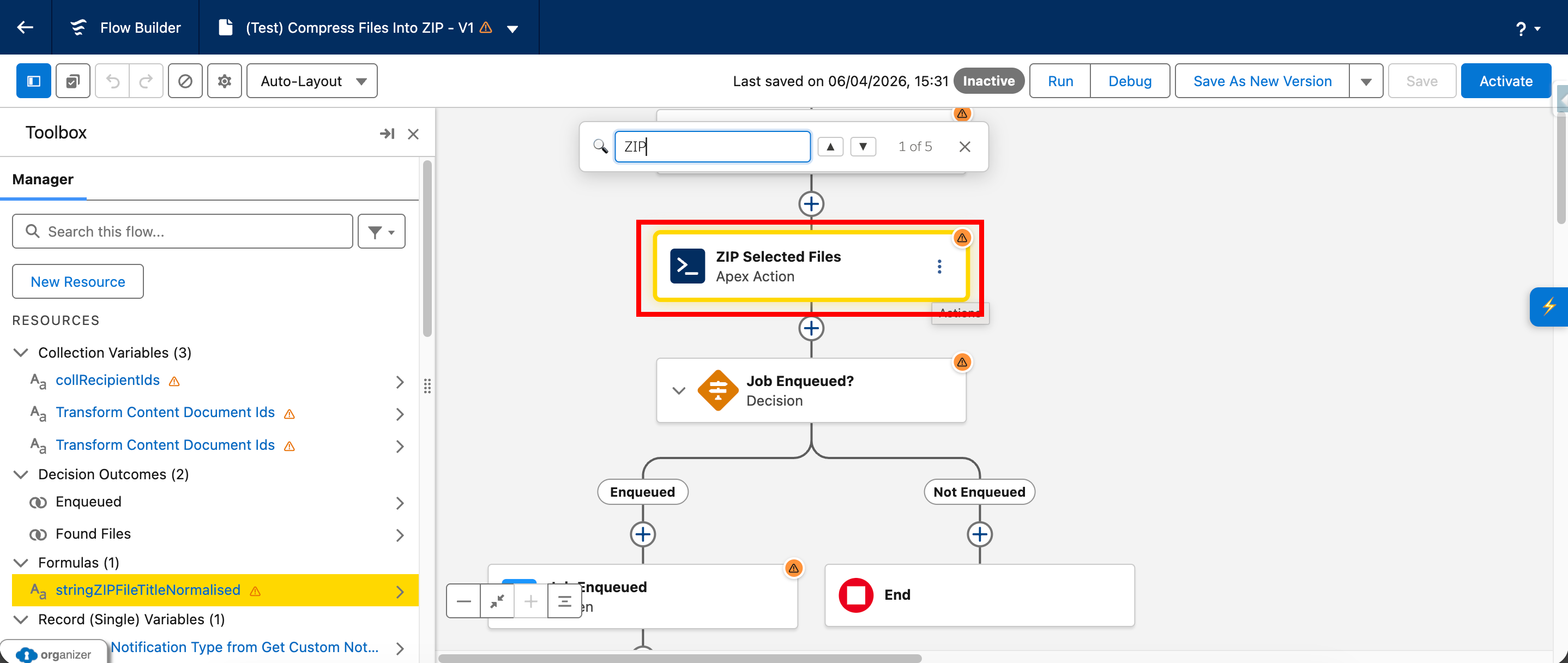
Canvas Search highlights matching items and allows users to move between results using either the keyboard or on-screen navigation controls.
Where it appears
Canvas Search is intended for Salesforce Flow Builder.
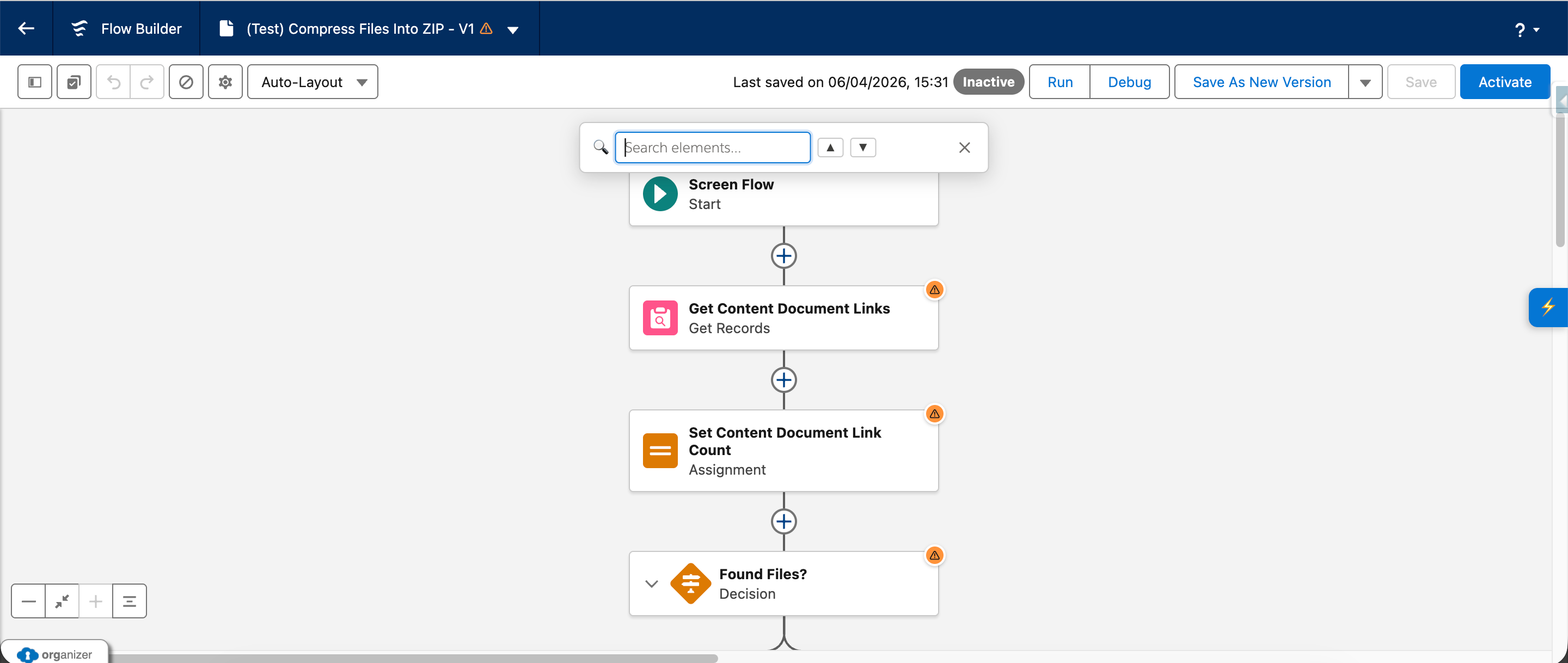
It runs in the Flow Builder canvas context and displays a search bar overlay positioned within the canvas area.
What the feature does
Canvas Search currently provides the following functionality:
- Detects that the user is in Flow Builder.
- Loads the configured shortcut and highlight colour settings.
- Opens a search overlay on demand.
- Searches Flow elements by label and type.
- Searches connector badges, such as labelled decision outcomes.
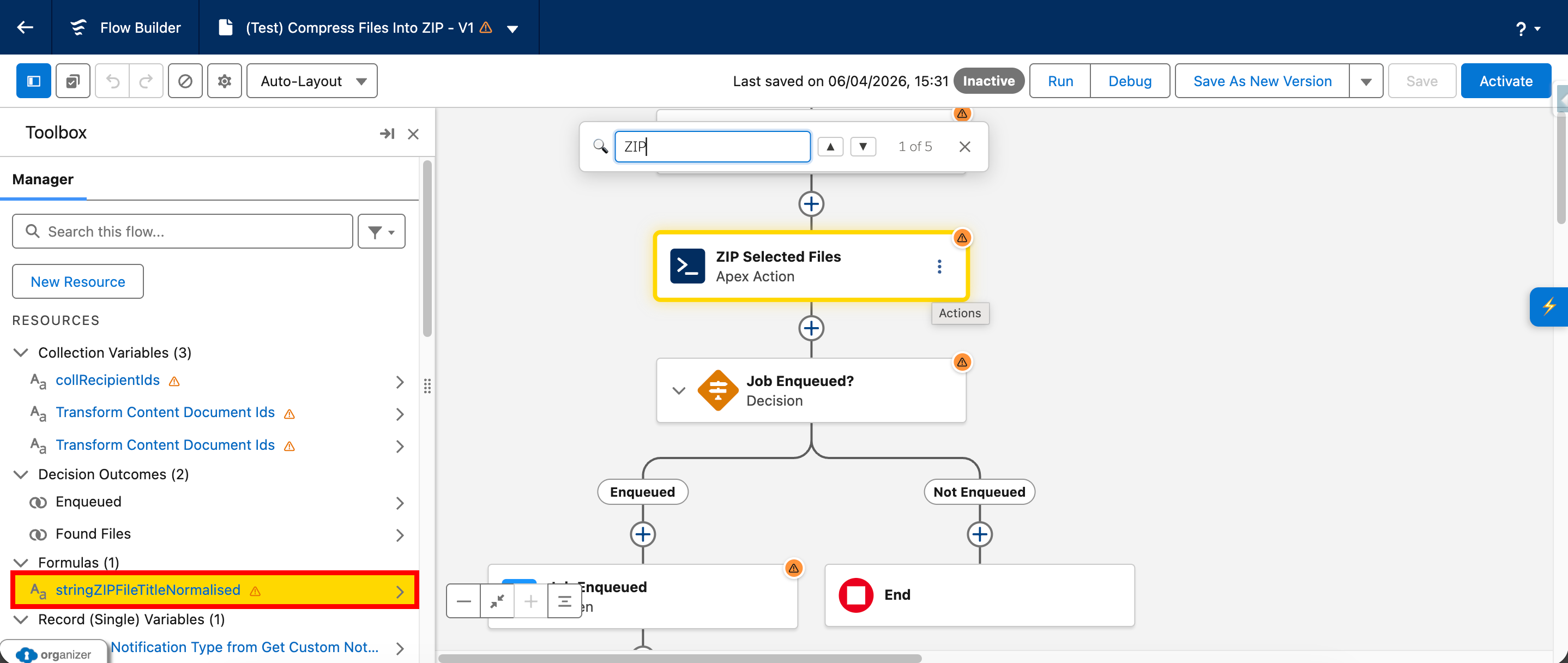
- Searches items in the left-hand toolbox panel, including resources and palette items.
- Highlights all matching items.
- Focuses the first match automatically.
- Allows navigation forwards and backwards through the result set.
- Attempts to bring the currently focused result into view.
Search behaviour
The search input currently uses the placeholder text:
Search elements…
Searches are case-insensitive and currently check several areas of the Flow Builder UI.
Element cards
Canvas Search looks for matches in visible Flow element cards using:
- element label
- element type
This means users can search for either a specific named element or a broader type such as a Decision or Screen.
Connector badges
Canvas Search also searches connector badge labels, such as decision branch labels or other visible connector text.
Toolbox and resources panel
Canvas Search also searches items in the Flow Builder left panel, including toolbox palette items and resources.
When a toolbox match is focused, the feature attempts to:
- identify the relevant accordion section
- expand that section if needed
- ensure the left panel is visible
- scroll the matched item into view
This helps make search useful across both the canvas itself and the supporting left-hand panel.


Navigation behaviour
When matches are found:
- all matches are highlighted
- the first match is focused automatically
- the result counter shows the current match position
- users can move to the next or previous result
The current counter format is:
1 of 52 of 5- and so on
If no matches are found, the overlay shows:
No matches
Keyboard controls
Canvas Search supports keyboard control for opening and navigating search results.
Open search
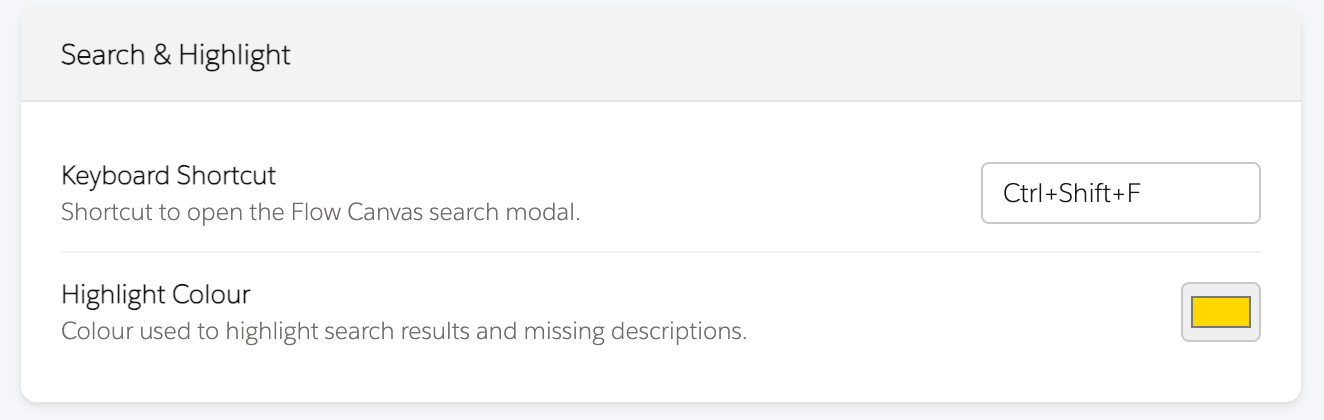
The feature uses a configurable keyboard shortcut from settings.
The default shortcut is:
- Ctrl + Shift + F
If the search overlay is already open, triggering the shortcut again focuses and selects the input.

Navigate matches
When the search overlay is open:
- Enter moves to the next match
- Shift + Enter moves to the previous match
- Arrow Down from the input moves to the next match
- Arrow Up from the input moves to the previous match
- Escape closes the overlay
On-screen controls
The overlay currently includes:
- a search icon
- a text input
- a previous-match button
- a next-match button
- a result count label
- a close button
This gives users both keyboard and click-based navigation options.
Highlighting behaviour
Canvas Search applies highlighting to all matched items and a stronger focus state to the currently selected result.
The highlight colour is configurable through settings and defaults to:
#FFD700
This means the visual emphasis can be adjusted later to better suit user preference or branding choices.
How scrolling and focus work
When a result is focused, Canvas Search attempts to bring it into view.
Canvas items
For Flow canvas elements, the feature attempts to reposition the Flow Builder canvas so that the matched element is centred in the visible viewport.
Toolbox items
For toolbox or resource items, the feature attempts to:
- expand the relevant accordion section if needed
- make the left panel visible if necessary
- scroll the matched item into view
This behaviour is intended to make navigation smoother across both the main canvas and the left-side Flow Builder panel.
How to use it
- Open a Flow in Salesforce Flow Builder.
- Launch Canvas Search using the configured shortcut or the extension menu.
- Enter a search term.
- Review the highlighted matches.
- Use Enter, Shift+Enter, or the navigation buttons to move through results.
- Press Escape or use the close button to dismiss the overlay.
Notes and limitations
Current implementation notes:
- The feature is designed specifically for Salesforce Flow Builder.
- Search includes canvas elements, connector labels, and left-panel toolbox/resource items.
- The feature depends on Salesforce DOM structure and selectors remaining compatible.
- Highlight colour and shortcut behaviour depend on settings being available.
- If the expected canvas container is not found, the overlay falls back to being attached to the page body.
Accessibility and usability notes
The current implementation supports:
- keyboard-first access
- a configurable shortcut
- visible result counts
- explicit close behaviour
- visual highlighting for both all matches and the currently focused match