Flow List Search
Overview
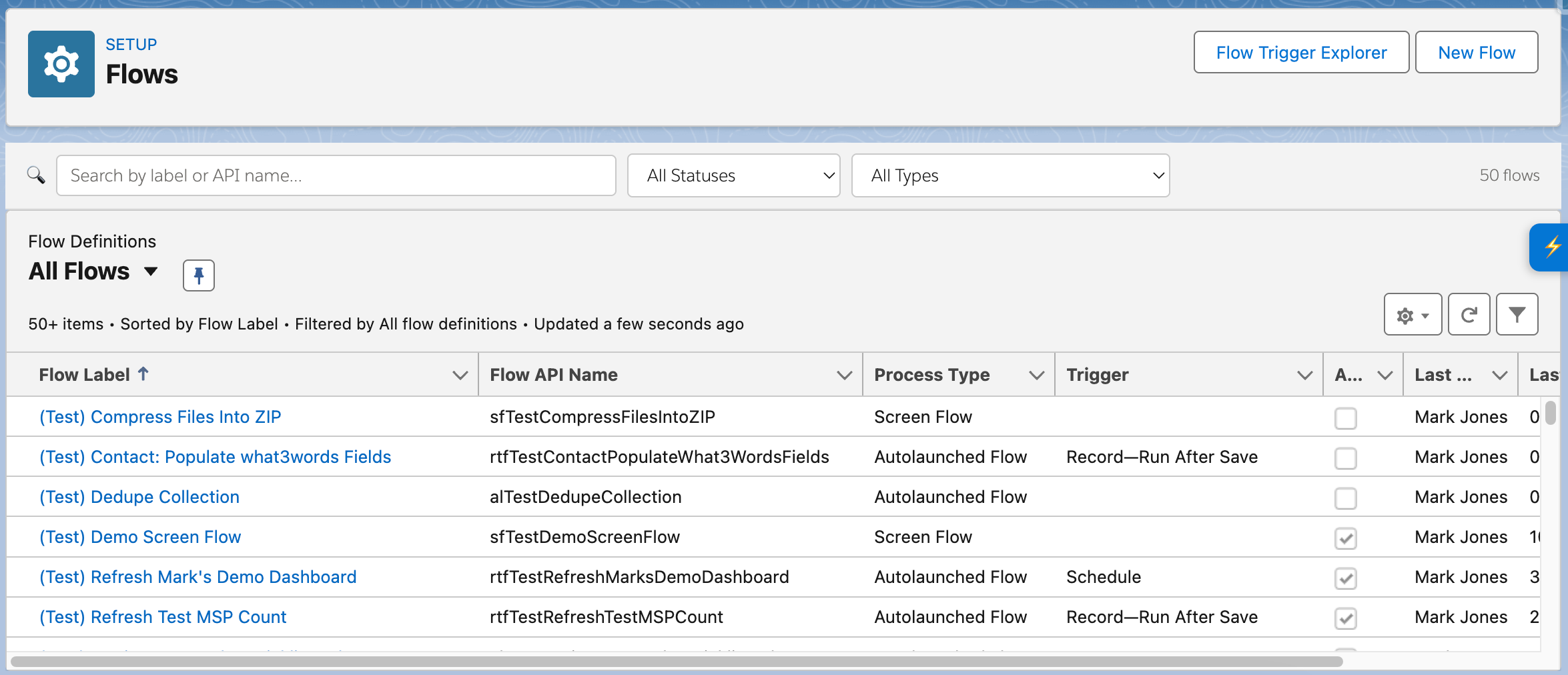
Flow List Search enhances the Salesforce Setup Flows page by adding a search and filtering toolbar above the Flow list.
The feature is designed to make it easier to find specific Flows in larger orgs by allowing users to:
- search by Flow label
- search by Flow API name
- filter by Flow status
- filter by Flow type
- quickly see how many Flows match the current filters
Where it appears
Flow List Search is intended for the Salesforce Setup Flows page:
https://{org}.salesforce-setup.com/lightning/setup/Flows/home
The feature waits for the Flow list view table to load, then injects its toolbar into the page header area or list view container.
What the feature does
Flow List Search currently provides the following functionality:
- Waits for the Salesforce Flow list to render.
- Injects a search input above the list.
- Injects Status and Type filter dropdowns.
- On first interaction, automatically scrolls the list to force Salesforce to load all lazily rendered rows.
- Indexes the available Flow rows for searching and filtering.
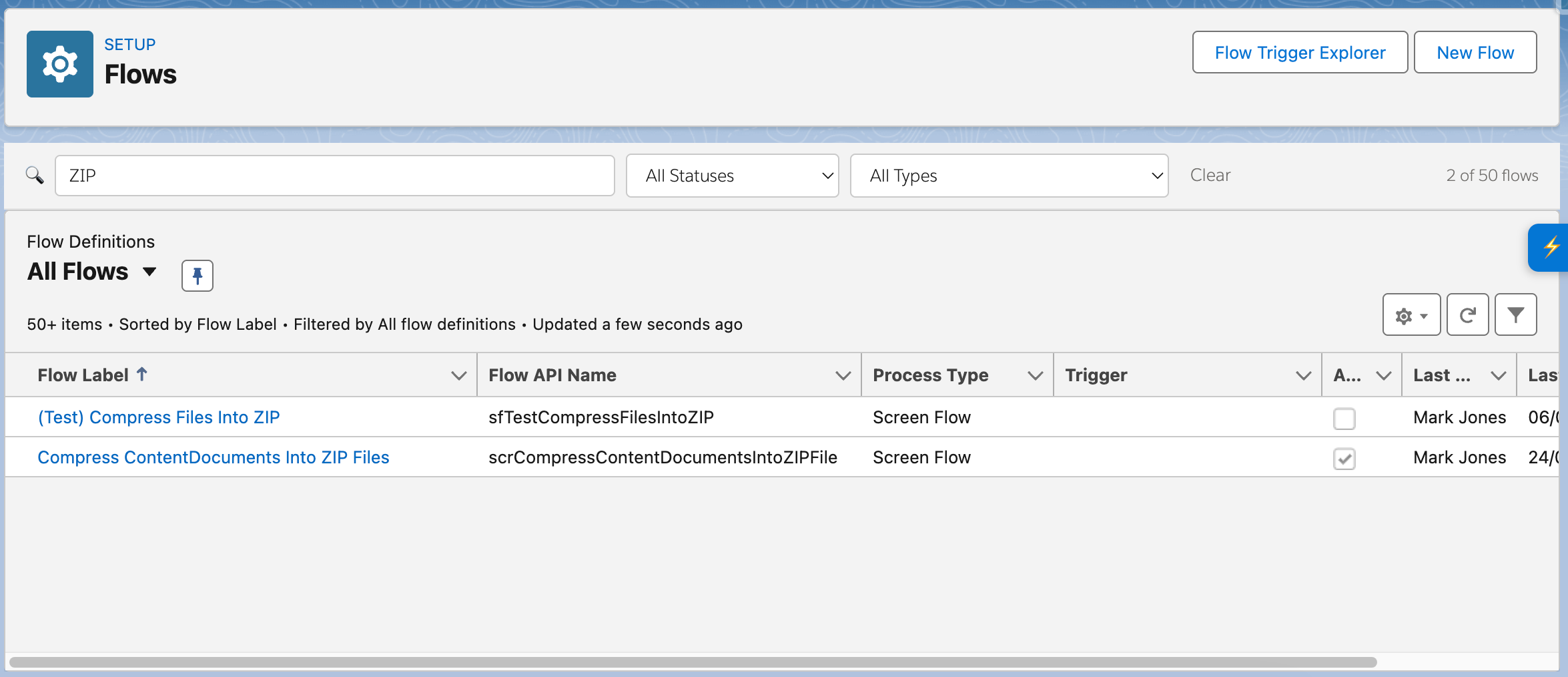
- Searches using Flow label and Flow API name.
- Filters results by status and Flow type.
- Displays a count showing matching Flows versus the total indexed Flows.
Search behaviour
The search input is designed to help locate Flows quickly using text-based matching.
Current behaviour includes:
- search by Flow label
- search by Flow API name
- search works against a combined search index built from key row values
- matching is case-insensitive
- the search input uses a small debounce before applying results
The placeholder text shown in the search box is:
Search by label or API name…
Filters
Status filter
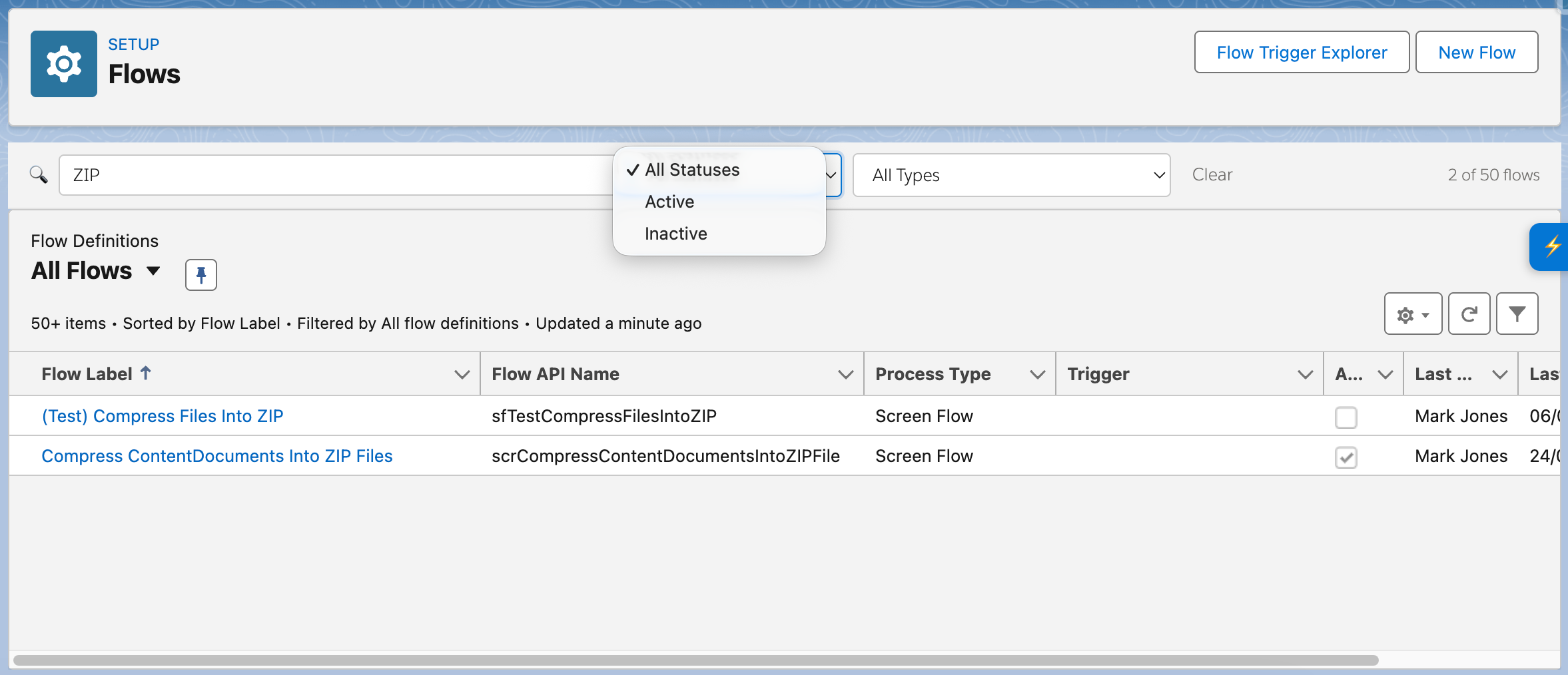
The Status filter currently supports:
- All Statuses
- Active
- Inactive
Status values are normalized internally so both checkbox-style values and textual active/inactive values can be handled consistently.
Type filter
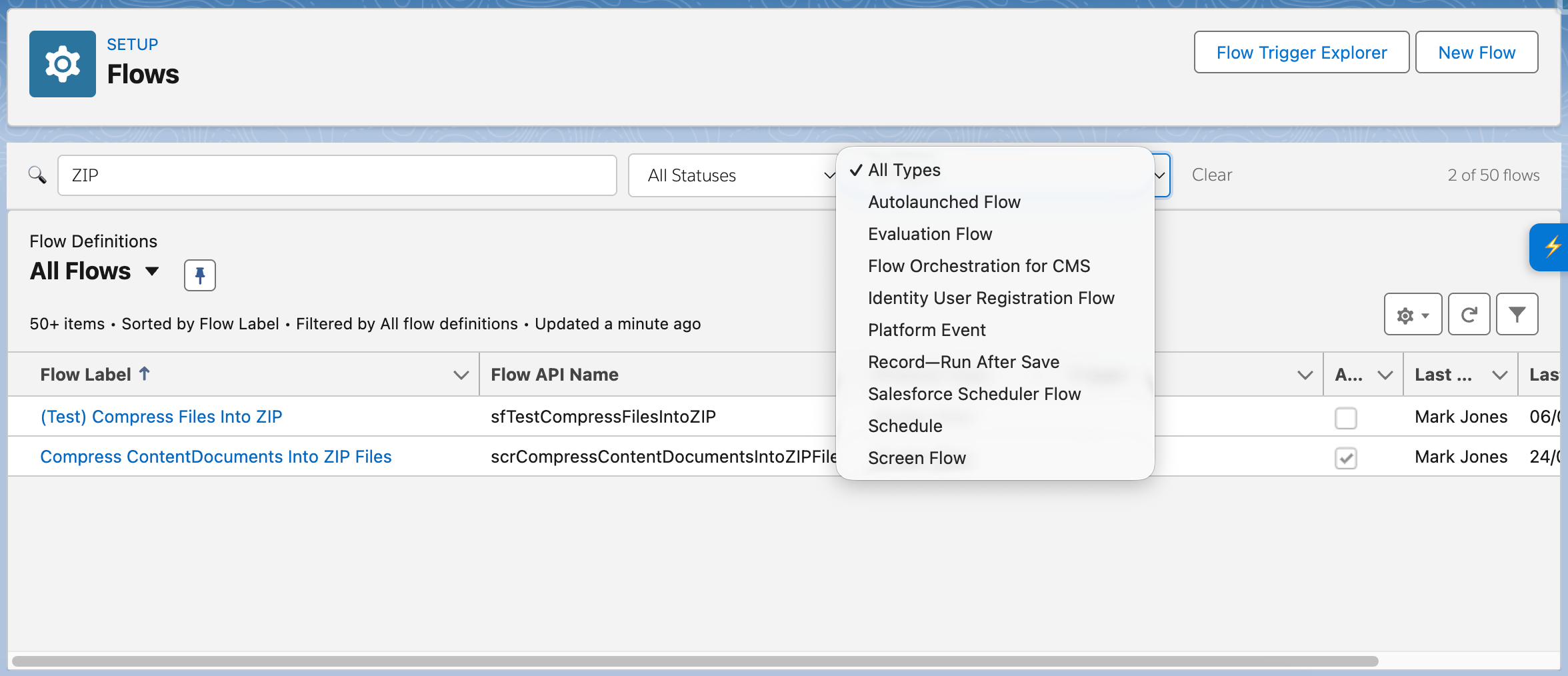
The Type filter is populated dynamically from the Flows currently indexed in the list.
Type labels are mapped into more user-friendly display values where possible. Examples include:
- Screen Flow
- Autolaunched Flow
- Scheduled Flow
- Record-Triggered Flow (Before Save)
- Record-Triggered Flow (After Save)
- Platform Event-Triggered Flow
Lazy-loading support
To improve search accuracy, Flow List Search attempts to load all rows before applying full indexing and filtering. On first focus, input, or filter interaction, the feature automatically scrolls the Flow list container to the bottom and waits for row counts to stabilise before returning to the top.
Count and clear behaviour
The toolbar shows a count label to help the user understand the current result set. The toolbar also includes a Clear button, which clears the search term, resets all filters, and returns focus to the search box.
Keyboard shortcut
- Ctrl + Shift + F / Cmd + Shift + F on macOS
How to use it
- Open the Salesforce Setup Flows page.
- Wait for the Flow list to load.
- Use the search box to enter part of a Flow label or API name.
- Optionally apply a Status or Type filter.
- Review the filtered list and count label.
- Use Clear to reset the toolbar state.
Notes and limitations
- The feature is designed specifically for the Salesforce Setup Flows page.
- It depends on Salesforce list view DOM patterns and selectors being present.
- Type options are generated dynamically from the currently indexed rows.
- Search accuracy improves once lazy-loaded rows have been fully loaded.