Flow Metadata & AI Assistant
Overview
Flow Metadata & AI Assistant is a combined metadata and prompt-generation feature for Salesforce Flow Builder.
It provides a side-panel experience that helps users:
- review Flow metadata in a more usable format
- copy or download Flow metadata as JSON
- generate AI-ready prompts using built-in templates
- choose between raw and cleaned metadata depending on the task
- estimate prompt size before copying content into an external AI tool
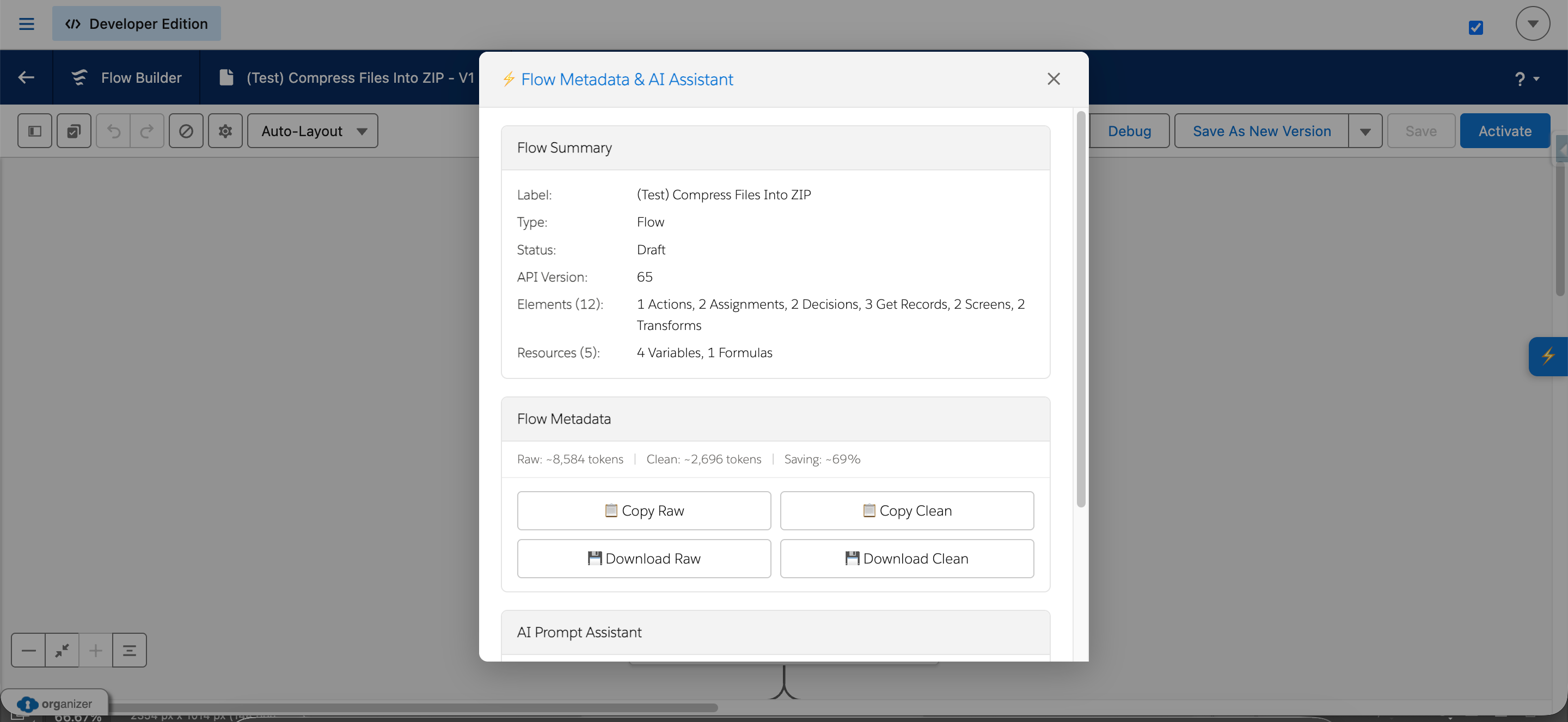
Where it appears
Flow Metadata & AI Assistant is intended for Salesforce Flow Builder. When activated, it opens a panel overlay that can be closed by clicking the close button, pressing Escape, or clicking outside the panel.
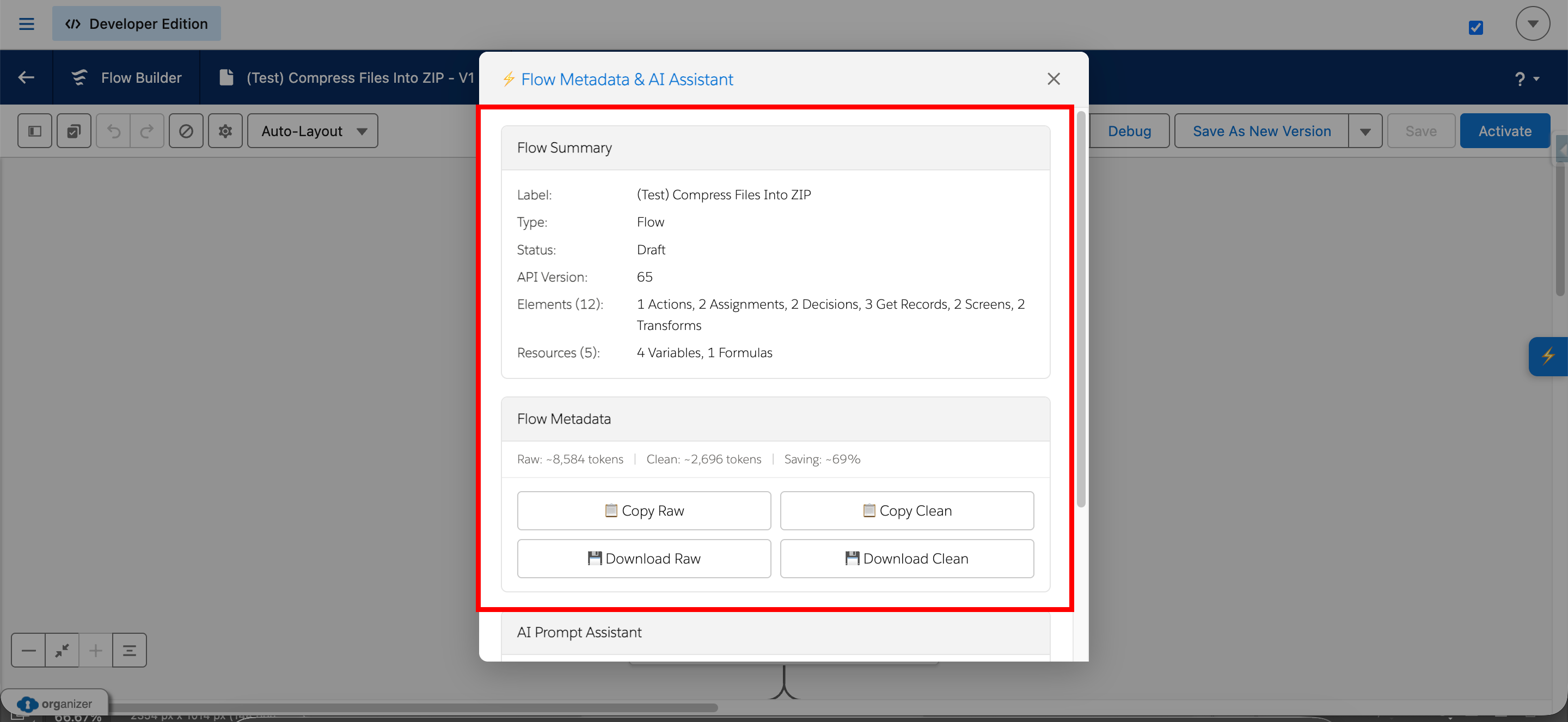
Panel sections
Flow Summary
Displays core metadata: Label, Type, Status, API Version, element summary, and resource summary.
Flow Metadata
Shows estimated token counts for raw and cleaned metadata, the token saving percentage, and action buttons:
- Copy Raw / Copy Clean
- Download Raw / Download Clean
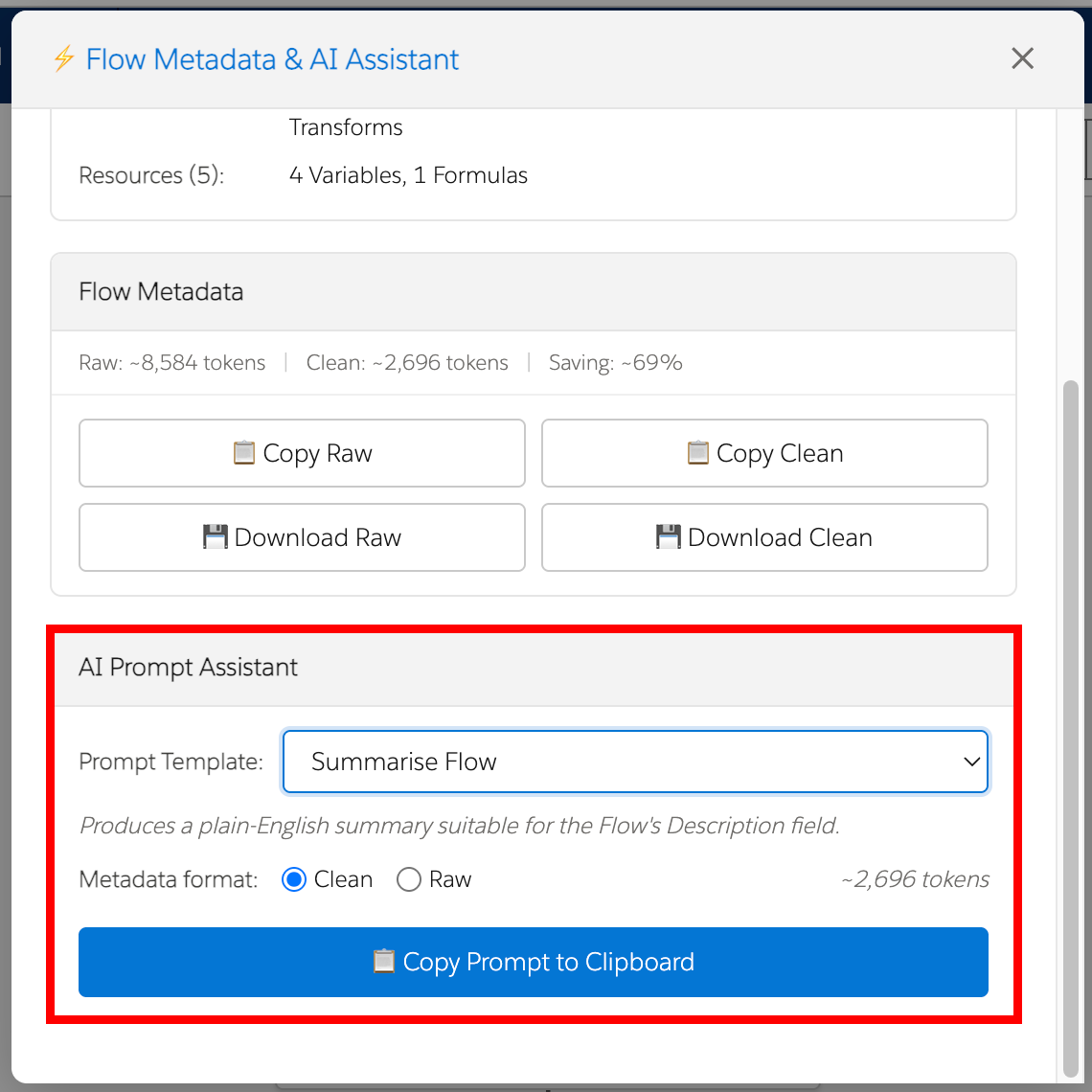
AI Prompt Assistant
Lets the user select a prompt template, choose between Clean and Raw metadata, view a token estimate, and copy the assembled prompt to the clipboard.
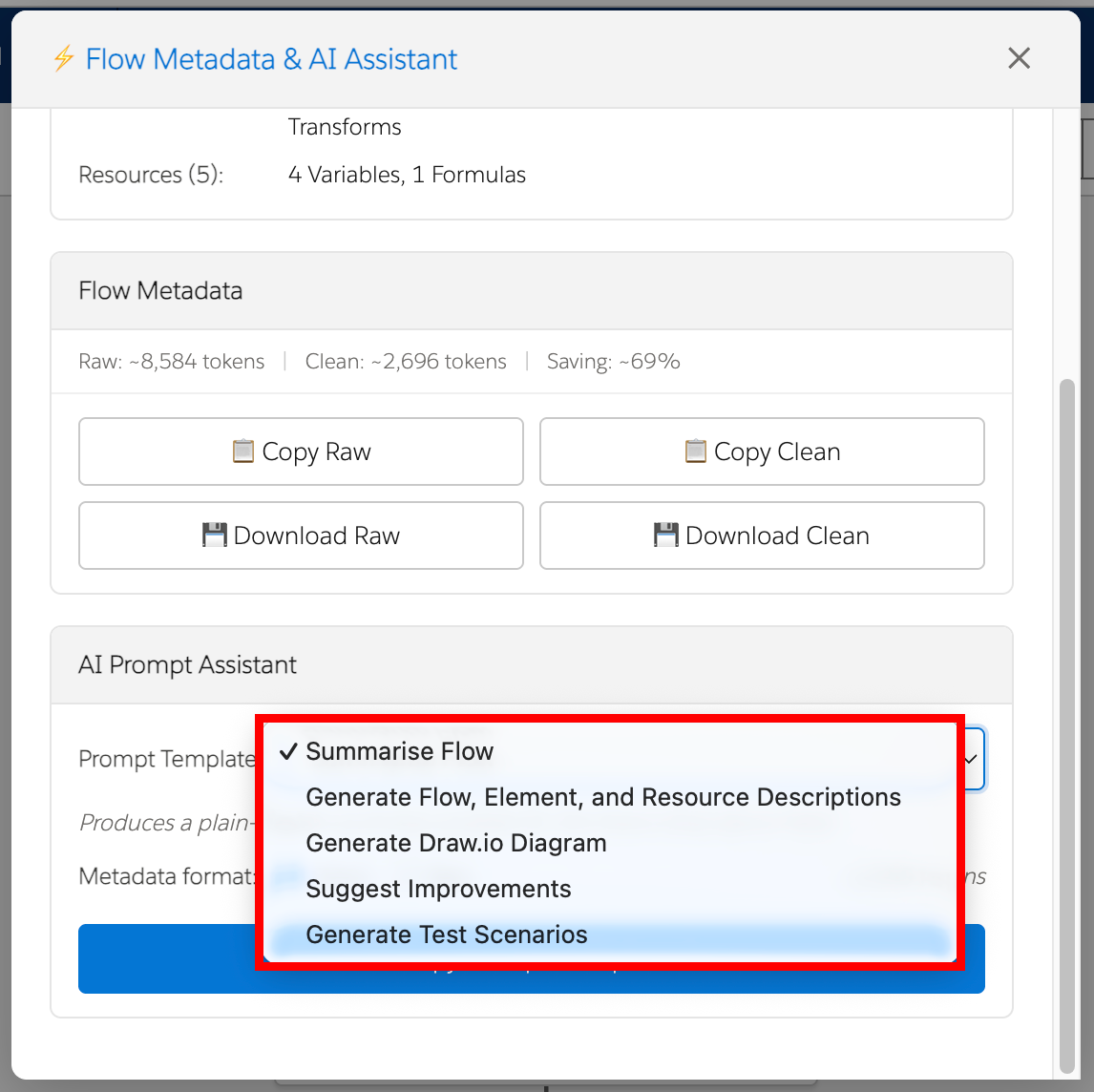
Prompt templates
- Summarise Flow — produces a plain-English Flow summary suitable for a Flow description
- Generate Flow, Element, and Resource Descriptions — produces structured documentation including a Flow summary, paste-ready descriptions, and grouped element/resource descriptions
- Generate Draw.io Diagram — produces Draw.io compatible XML representing the Flow visually
- Suggest Improvements — analyses the Flow against performance, error handling, maintainability, security, governor limits, and general best practices
- Generate Test Scenarios — produces structured test scenarios covering Flow paths, branches, edge cases, and fault handling
How to use it
- Open a Flow in Salesforce Flow Builder.
- Launch AI Assistant from the extension.
- Wait for the current Flow metadata to be retrieved.
- Review the Flow Summary section if needed.
- Choose whether you want to work with raw or cleaned metadata.
- Select a prompt template.
- Review the token estimate.
- Click Copy Prompt to Clipboard.
- Paste the copied prompt into your preferred AI tool.
Notes and limitations
- The feature prepares prompts and metadata but does not itself execute an external AI model.
- Token estimates are approximate and intended as a planning aid.
- The quality of AI outputs depends on the selected prompt template and the metadata supplied to the external AI tool.
- The feature depends on successful metadata retrieval for the current Flow.